Dash Cam SD Card Check for Android
Plug your dash cam's memory card into your phone and see what it really recorded: every gap, the clips that will not play, and whether the card is on its way out.
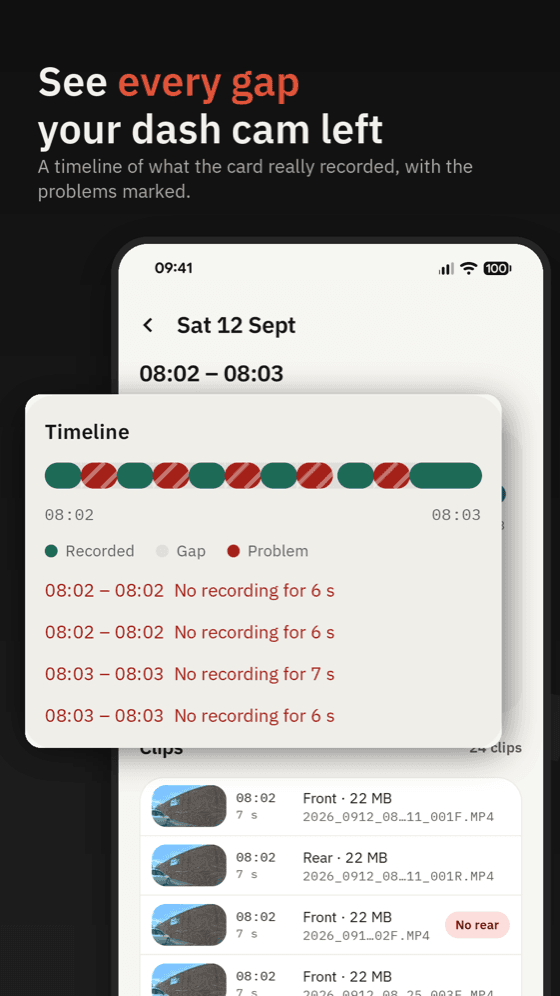
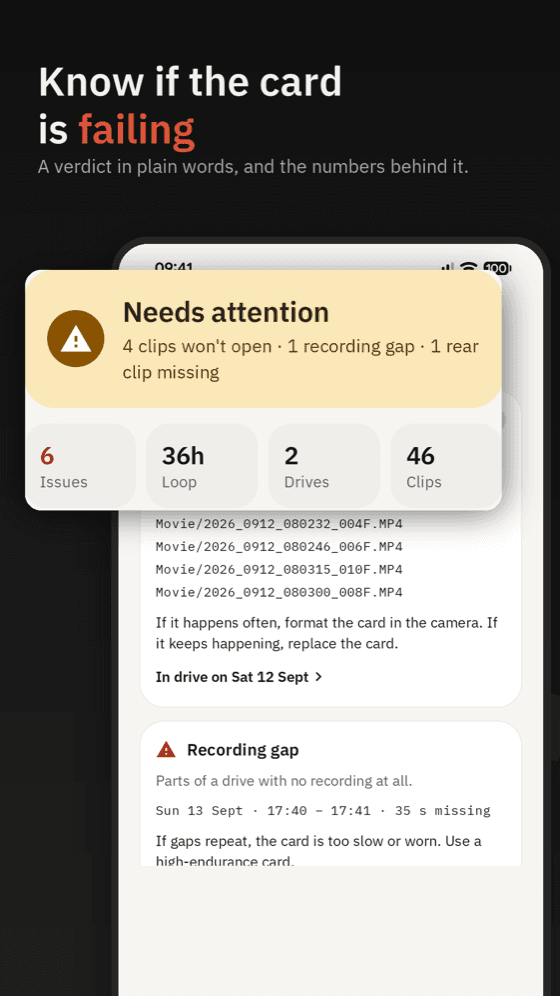
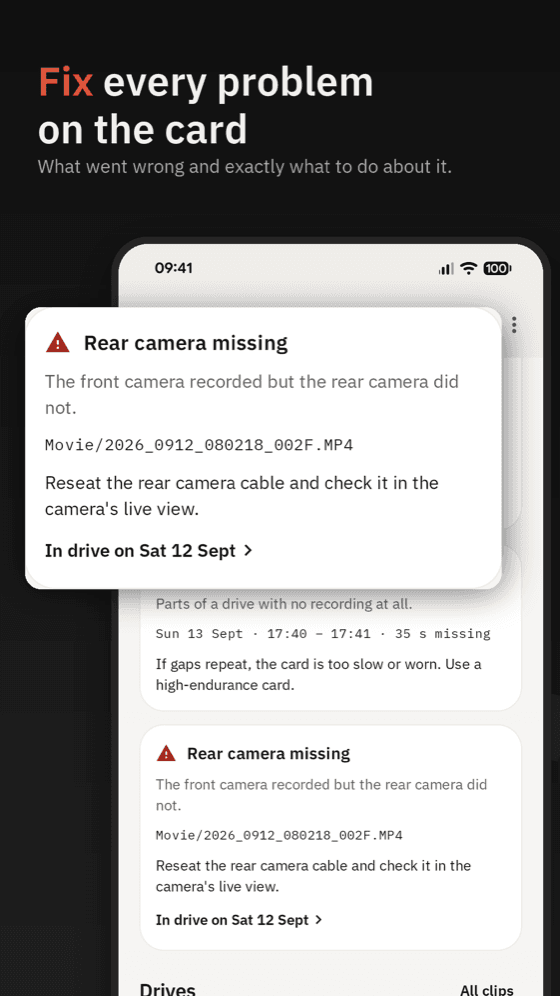
A drive with its gaps, the card's verdict, and what to do about each problem.
Your dash cam can stop recording without telling you
The memory card is the part of a dash cam that wears out first, and it fails quietly. Clips stop saving, or save broken, and many owners only find out when they go looking for the footage they need. This app reads the card and tells you, in plain words, what is actually on it.
How to check your dash cam SD card
- Step 1
Switch the dash cam off and take the card out.
- Step 2
Plug it into your phone with a USB-C microSD reader, or copy the footage folder to your phone.
- Step 3
Pick the card's top folder. The check takes a minute or two.
What you get
- A clear verdict for the card
Healthy, needs attention, or failing, in plain words, with the numbers behind it.
- Every drive on a timeline
See what the card actually recorded, with the recording gaps marked to the minute.
- The clips that went wrong
Corrupted clips that will not open, clips cut short, and front clips with no rear recording.
- What to do about each problem
Format in the camera, check the power cable, or replace the card. You can also play any clip right in the app.
- A history for each card
Check the same card again after a long trip and see if it is getting worse, before the day you need the footage.
More than an SD card test
A normal SD card test measures speed and capacity, and usually means emptying the card first. It cannot tell you whether last week's drives were recorded or which clips are broken. This check reads the footage itself, read-only, so nothing on the card changes.
It works alongside your camera's own dash cam app: that one connects to the camera, this one checks what actually made it onto the card.
Common questions
- Which dash cams does it work with?
Dash cams that record to a microSD card. You pick the card's top folder and the app finds the clip folders itself. If a check looks wrong for your camera, email kyusafeapp@gmail.com with the model and what you saw.
- What do I need?
An Android phone and a USB-C microSD card reader. If you do not have a reader, you can copy the footage folder to your phone and check that instead.
- Will it change or delete anything on my card?
No. The app opens the card read-only. It never modifies, moves or deletes a file, so any footage you need stays exactly as it was.
- Can it recover corrupted or deleted footage?
No. It shows you which clips are damaged and where the gaps are, so you know what you have before you format or replace the card. It does not repair files.
- Is my footage uploaded anywhere?
No. Checks run on your phone and the footage, file names and locations never leave it. There is no account to create.
- How much does it cost?
It is a subscription: a 4-day free trial on the weekly plan, then $3.99 a week, or $19.99 a year. You can cancel any time in Google Play.
- Is there an iPhone version?
Not at the moment. It is Android only.
The app shows what it finds on the card. It cannot promise a card or a future recording is fine, recover footage, or say whether footage will be accepted by an insurer or court.