How to create a document scanner using ML Kit and Jetpack Compose
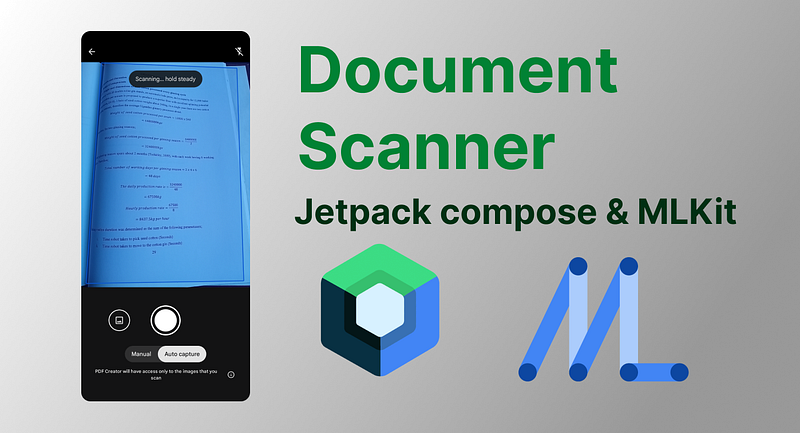
Google recently released their ML Kit document scanner API that can help you easily add a powerful AI-powered document scanner to your app. In this blog post, I will go through a step-by-step guide to implementing it in your app. So, let's dive right in.
Firstly, we need to add the dependency to our app-level build.gradle file.
implementation 'com.google.android.gms:play-services-mlkit-document-scanner:16.0.0-beta1'
Next, we must set the document scanner options by defining the following configurations:
- Whether to allow imports from the gallery
- Set a limit for the maximum number of pages scanned
- Set the scanner mode to control the feature sets in the workflow.
val options = GmsDocumentScannerOptions.Builder()
    .setGalleryImportAllowed(true)
    .setPageLimit(100)
    .setResultFormats(RESULT_FORMAT_JPEG, RESULT_FORMAT_PDF)
    .setScannerMode(SCANNER_MODE_FULL)
    .build()
Next, we need to create an instance of our document scanner. We do this by obtaining the client and passing in the scanner options that we previously defined.
val scanner = GmsDocumentScanning.getClient(options)
After creating the document scanner instance, you’ll need to use the activity callback methods. These allow you to launch the document scanner activity and receive a result.
First, let’s register for our scanner activity result:
val scannerLauncher =
     registerForActivityResult(ActivityResultContracts.StartIntentSenderForResult()) { result ->
     if (result.resultCode == RESULT_OK) {
        handleResult(result)
      }
   }
We obtain an IntentSender from the document scanner instance defined earlier. Then, we use this IntentSender to launch the scanner activity as follows:
scanner.getStartScanIntent(context)
        .addOnSuccessListener { intentSender ->
              scannerLauncher.launch(
                 IntentSenderRequest
                 .Builder(intentSender)
                 .build()
         )
        }.addOnFailureListener {
            Toast.makeText(context, "${it.message}", Toast.LENGTH_SHORT).show()
        }
Here’s how I handled the results in my app. I wanted to store the PDF meta information in a Room database for later retrieval.
fun handleResult(result: ActivityResult) {
        val currentTime = System.currentTimeMillis()
        val scanResult = GmsDocumentScanningResult.fromActivityResultIntent(result.data)
        scanResult?.pdf?.let { pdf ->
            val pdfUri = pdf.uri
            val pageCount = pdf.pageCount
            // do something with the result
        }
    }
Similarly, we can receive the first page image.
Here’s a demonstration of how the PDF Document Scanner i created works.
You can download the app on the Google play store here: https://play.google.com/store/apps/details?id=com.keru.pdfcreator
The source code is here: https://github.com/jordan-jakisa/pdf_creator
Please star the repo if you found this article useful 🙏
Ciao 🤓
Originally published on Medium.